Why voice
Coding agents like Claude Code and Codex work from what you tell them, and what you tell them is often a long sentence: "look at why the tests in this project fail, fix the failing cases, then run the whole suite again." Typing that on a phone means opening the keyboard, which covers half the terminal, and then a lot of tapping.
With voice input you press a volume key and just say it. And because a prompt is not finished until it is sent, everything after the talking is on the same panel too: take a phrase back, delete a few characters, press Enter. The keyboard stays closed, and the agent's output stays in view the whole time.
Your voice stays on your phone
Speech is turned into text by the phone itself. Term uses the system's on-device speech recognition, so your voice is never uploaded, recorded or sent to any server — not ours, not anyone's. It works the same with no network at all.
Only the finished words leave the phone, the same way anything you type does: they go to the server you are connected to.
Turn it on
- Open Settings → Terminal.
- Under Keys, turn on Volume keys.
- Tap Volume Up (or Volume Down) and choose Voice input.
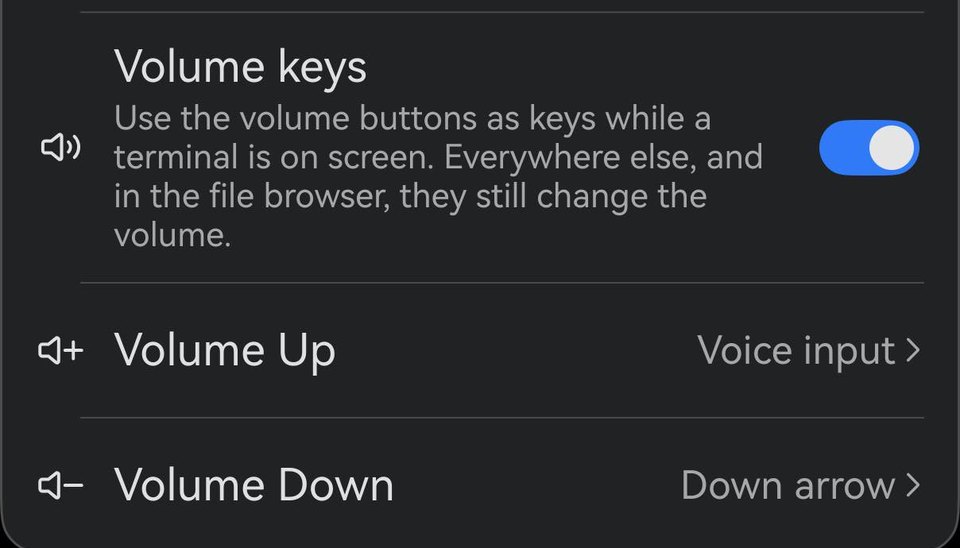
The first time you use it, Term asks for the microphone. Choose Allow.
The voice panel
Press the volume key and a small round panel opens over the terminal, already listening. The microphone sits in the middle, with four keys around it:
| Key | What it does |
|---|---|
| Microphone | Tap to say the next phrase. Tap it while listening to stop at once. |
| ↑ Enter | Sends the line — to your shell, or to the agent as your prompt. |
| ↶ Undo | Takes back the last phrase you said. |
| ⌫ Delete | Deletes one character. Hold it to keep deleting. |
| ✕ Close | Closes the panel. |
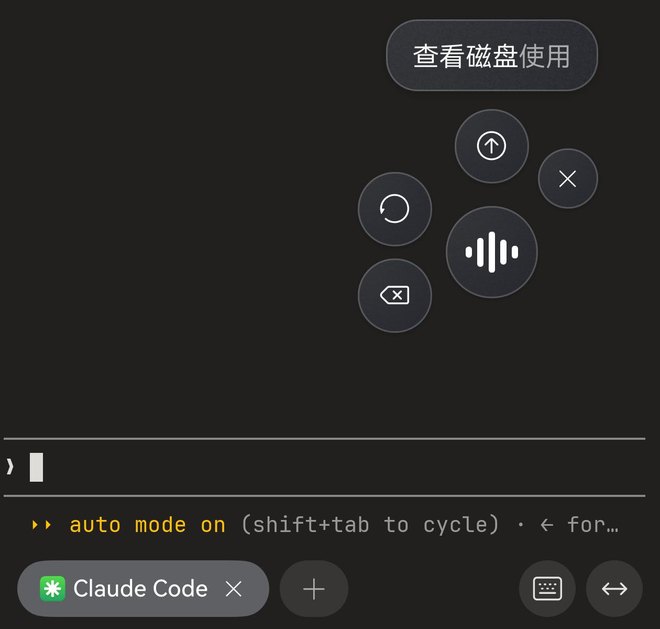
Speak, fix, send
- Say what you want. The words appear in the bubble as you speak. At a shell prompt they are also shown, dimmed, right where they will be typed.
- Pause. After a short silence the phrase is typed into the line and the panel waits, the microphone dimmed. Tap the microphone to add the next phrase — a long prompt can be said in several pieces.
- Fix it if you need to. ↶ takes the whole last phrase back; ⌫ trims a few characters.
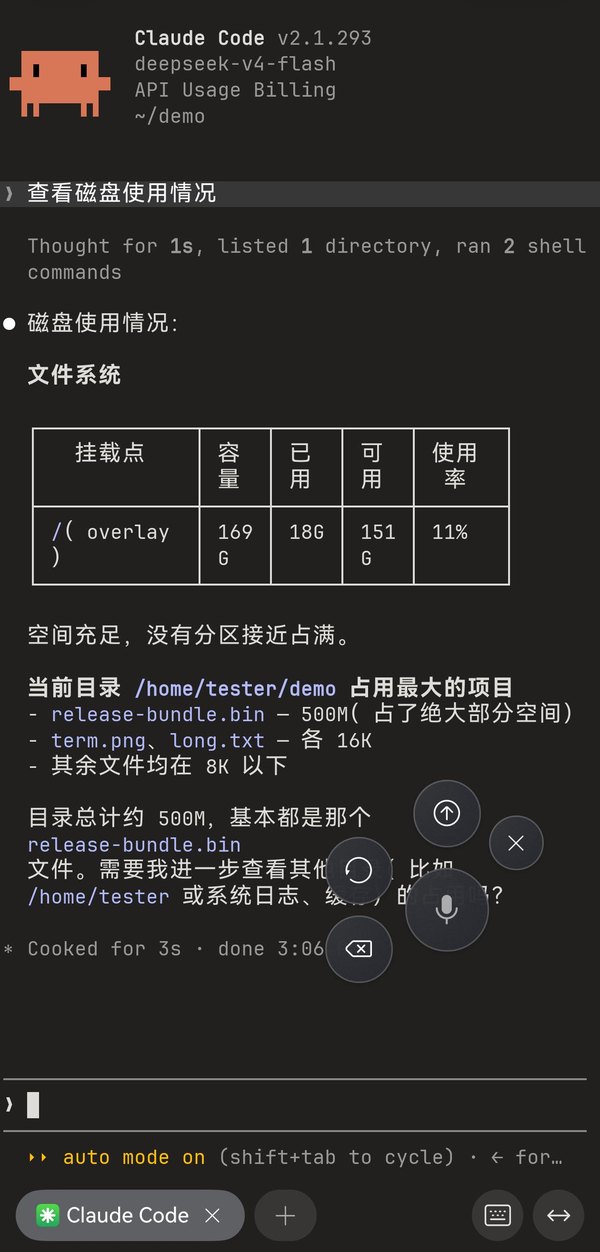
- Send it with ↑. If you tap it while Term is still listening, it sends as soon as your last words are typed.
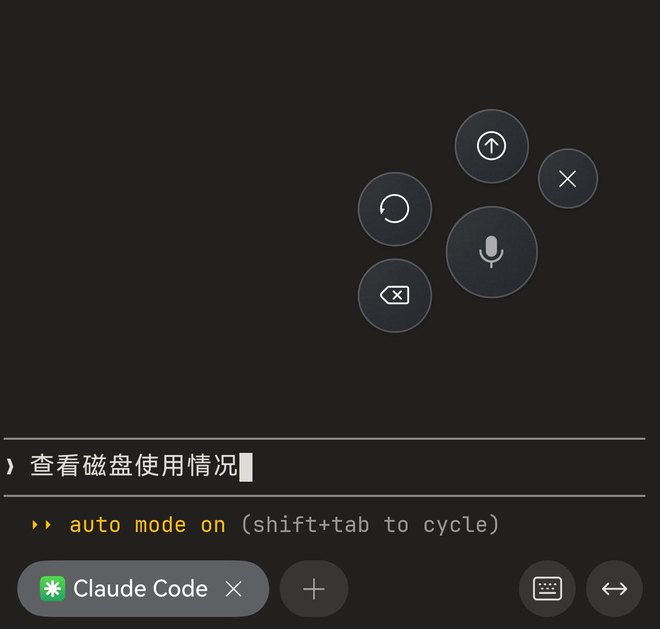
Term never presses Enter on its own: nothing is sent until you tap ↑.
Undo, exactly
↶ removes the characters voice input typed for your last phrase, and nothing else, and tells you which words it removed. It only does that while the line is the way voice input left it: once you have typed on the keyboard, moved the cursor, or deleted with ⌫, Term cannot be sure what it would be removing, so it says "The line was edited, so undo is off until you send" and leaves the line alone. With nothing left to take back it says "Nothing to undo". The button itself never greys out — the message tells you why.
Closing it
Tap ✕, press the voice key again, switch to another tab, or leave the terminal — any of these closes the panel. While it is open, the other volume key keeps doing whatever you set it to, such as the down arrow.
Move the panel
Drag it by any of its keys to wherever it is least in the way. Term remembers the spot, steps it off the line you are typing on, and on the left half of the screen turns the keys around so they face inward.
Where it works
Voice input understands Mandarin, on phones and tablets whose system region is set to mainland China — that is where the phone's speech recognition is available. It is not offered on PCs and 2-in-1s, which have a keyboard built in.
What changed in 26.8.0
The voice panel replaces the first version of voice input, a small floating microphone above the key bar. That microphone is gone, along with two habits that went with it: the other volume key no longer throws away the phrase you are saying (use ↶ after it is typed), and you no longer need to give the other volume key the Enter key to send — ↑ is on the panel. If you did set it up that way, it still works.
Until you update to 26.8.0 you will still see the floating microphone; it is replaced by the panel the first time you press the voice key after updating. Your volume key settings carry over as they are.