From the Files app
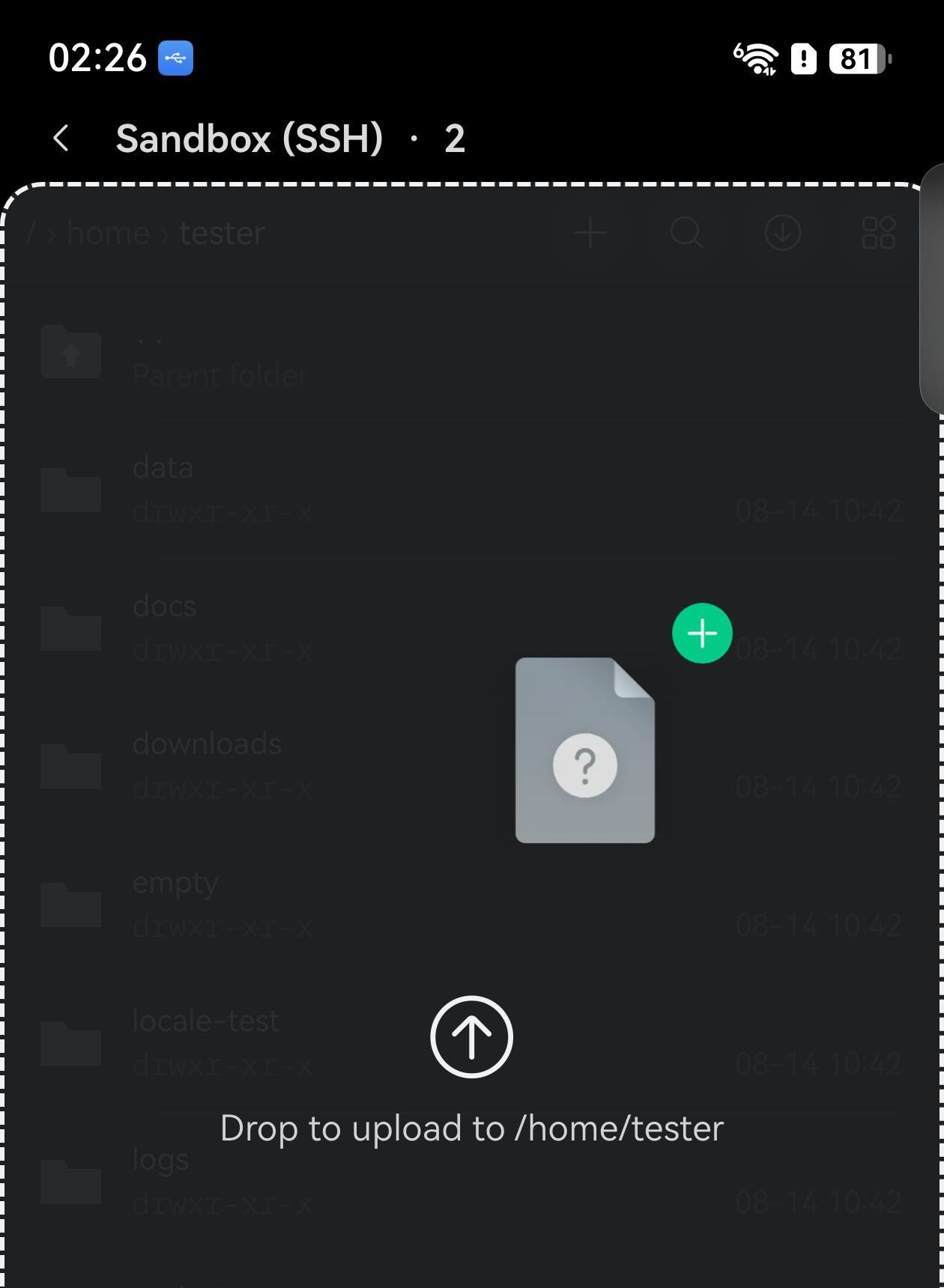
Open an SFTP tab and go to the folder the files belong in. Put the Files app beside it, in split screen or a floating window, then touch and hold a file and drag it over the SFTP view. The whole view outlines itself and names the destination, Drop to upload to /home/tester. Let go and the upload starts.
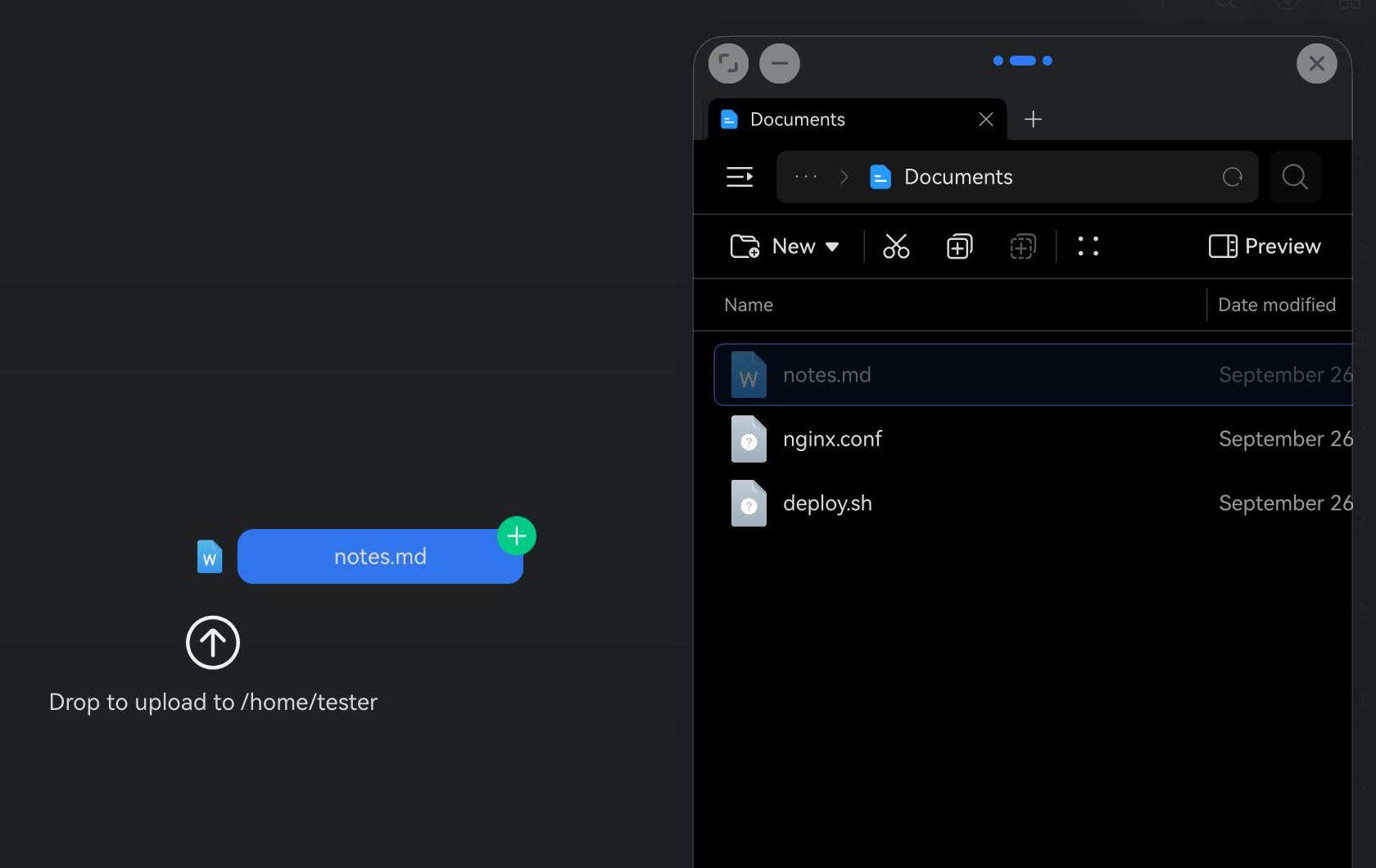
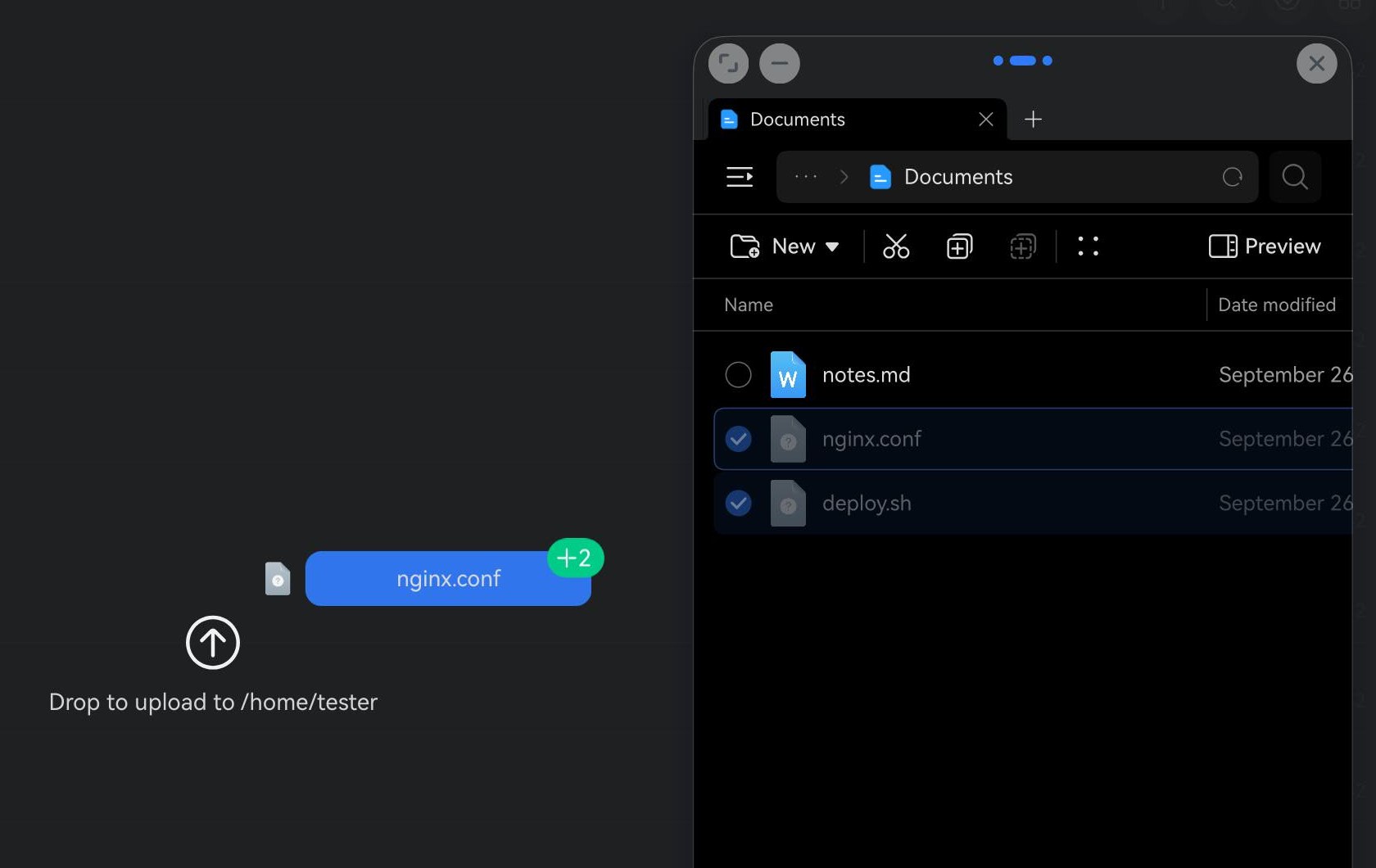
For several files, select them first (in Files, Select multiple) and drag any one of the selection; the rest come with it. The badge counts them.
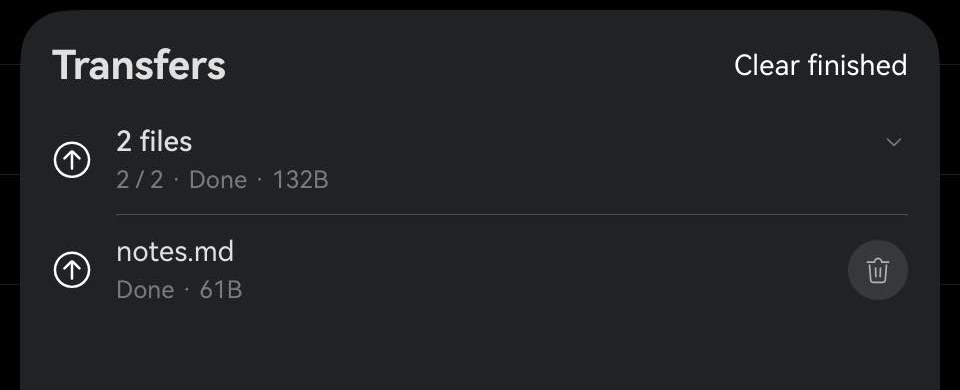
Dropped files go through the same upload queue as the upload button: progress, cancel and the Transfers list all work the same way.
From SuperHub, on a phone
A phone rarely has room for two apps side by side. SuperHub solves that: it holds files for you while you switch apps, and you drag them out wherever they are needed, full screen.
Start in Files: touch and hold a file and drag it towards the top-right corner, where a Drag here target appears. Drop it there. If nothing appears, turn on Show on drag in SuperHub's settings.
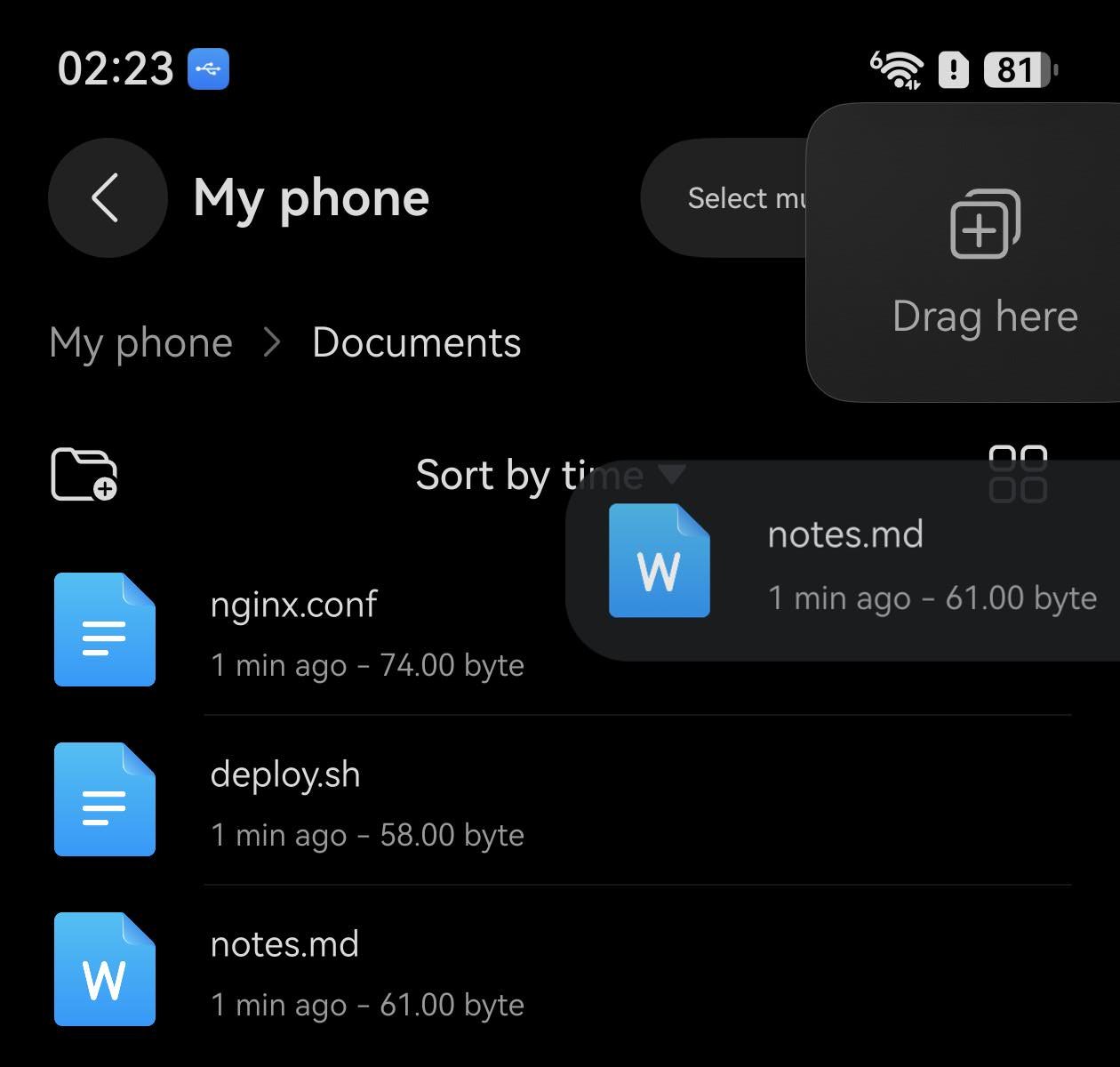
Then switch to Term and open the SFTP tab. SuperHub waits as a small tab at the edge of the screen; tap it and your files show as a stack of thumbnails.
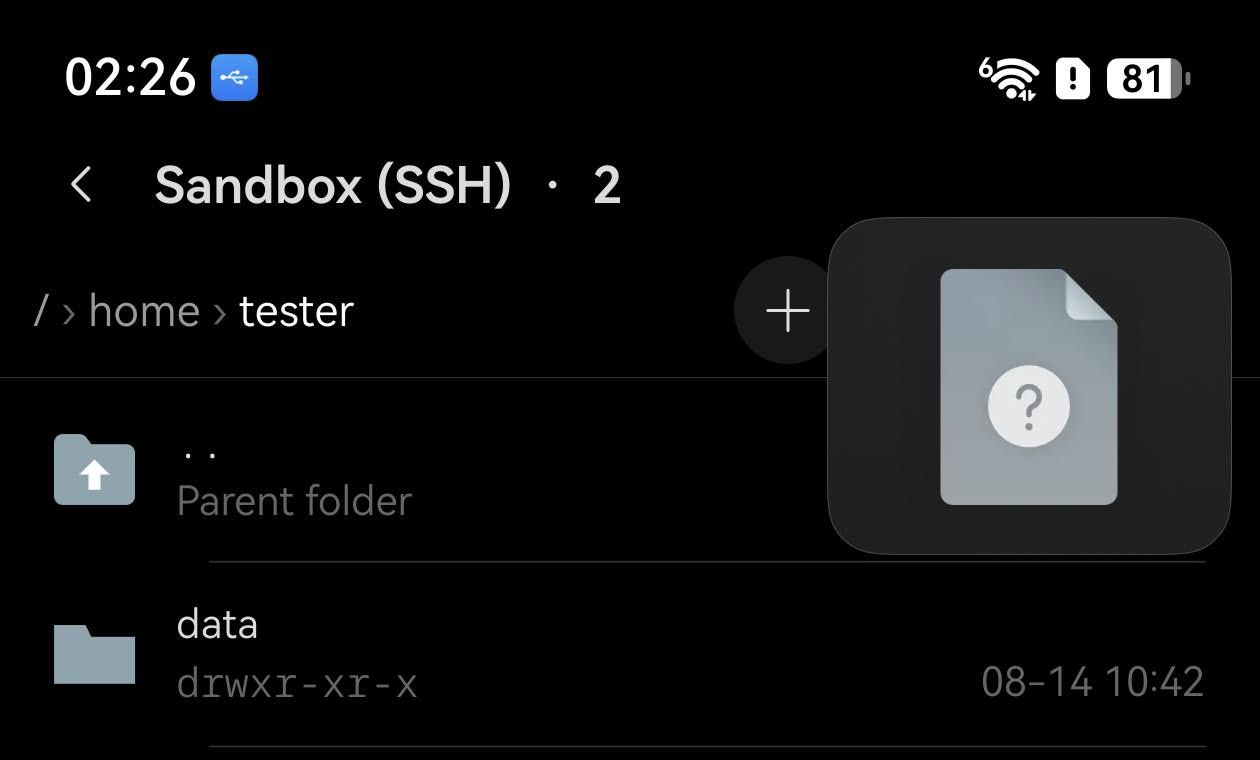
Touch and hold the stack and drag it onto the SFTP view. The same outline appears, and letting go uploads everything in it.
What a drop takes
Files, not folders
A folder on its own is refused with a message saying so — drop the files inside it instead. When files and folders are dropped together, the files upload and the folders are skipped.
To the folder on screen
Everything lands in the folder the SFTP view is showing, under its own name. To send files somewhere else, go to that folder first.
Only while connected
If the connection has dropped, a drop is refused with a message to reconnect first, rather than queued for later.

More: The SFTP file browser · Floating windows · SuperHub (Huawei support)