All of this is in the code editor that comes with Term Pro. Without a subscription, files open in the basic editor, which has none of it — see File editor v2 for what the code editor is and how to get it.
Long lines
With Editor line wrap off (Settings › Terminal; it is off unless you changed it), a long line runs past the edge of the screen, and you swipe sideways to read it. Three things make that easier.
A swipe keeps to its direction. Scroll down a log and the text no longer drifts sideways under your thumb, and a sideways swipe no longer slides you down the file. Whichever way you start — within 30° of straight up-down or side to side — is the only way the text moves, until you lift your finger and through the glide that follows. A swipe that starts clearly on the diagonal still moves both ways.
It settles on the first column. Let go within a character and a half of the left edge and the text eases the rest of the way, so you are never left with every line's first letter half under the line numbers.
You can see that it is scrolled. While the text is scrolled to the right, a soft shadow runs down its left edge, under the line numbers. The start of every line is hidden, and the shadow says so. While you swipe sideways, a thin scrollbar shows at the bottom of the text, the way the vertical one shows on the right; each appears only for the direction you are scrolling, and fades when you stop.
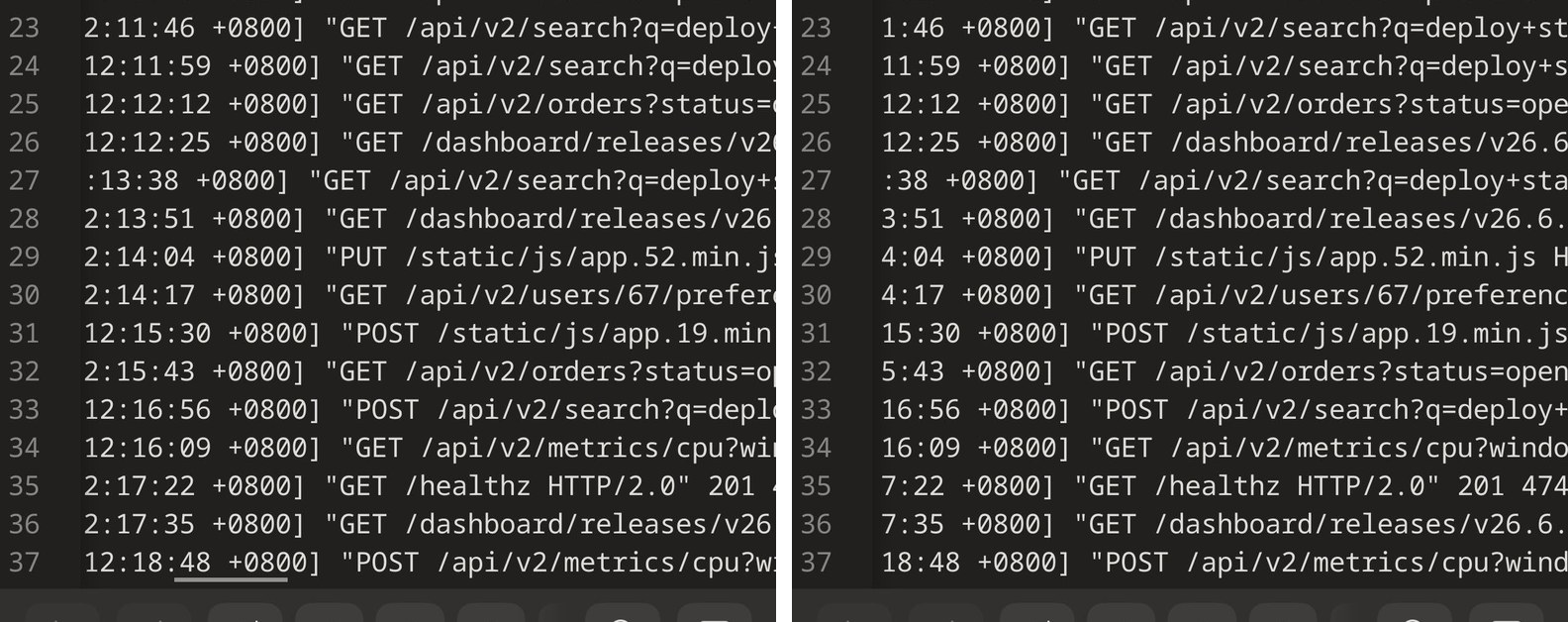
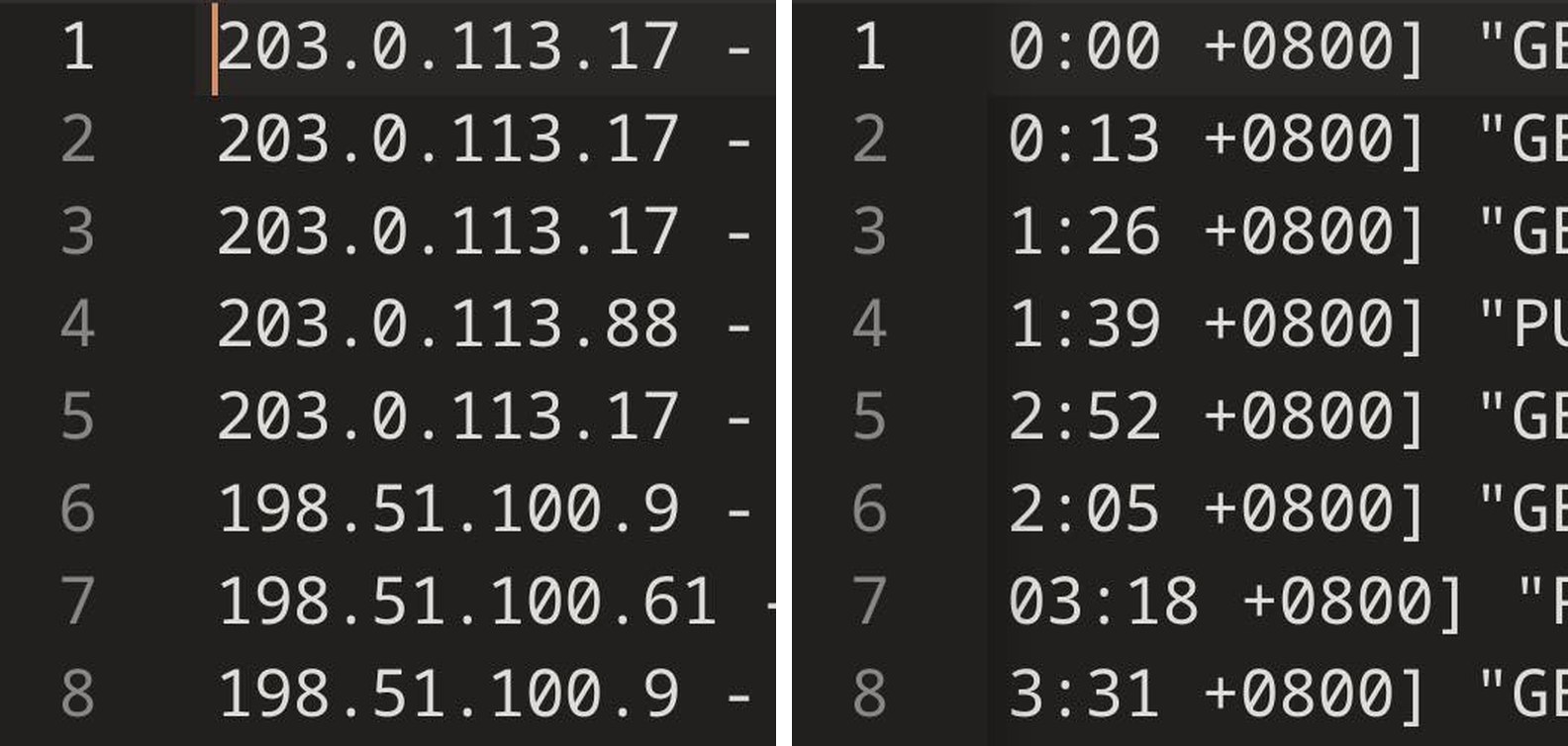
With Editor line wrap on, nothing scrolls sideways, so there is no shadow and no bottom scrollbar.
Select all, then do something with it
Select all used to close the menu, leaving the whole file selected and nothing to do with it by touch. Now the menu comes back, on the selection, with Copy, Cut and a new Delete — and without Select all, which has nothing left to do. Delete removes the selection and leaves your clipboard alone; Cut puts it on the clipboard first. An undo brings either back.

Paste now goes straight in, too. Term asks once to read the clipboard; choose Allow all the time and every paste after that is a single tap. Say no and Paste becomes the system's paste button, which works without the permission.
Folding
A line that starts a block — a function, a class, a section — has a circled minus beside its number. Tap it and the block folds to a single line with a … N lines chip; the marker becomes a circled plus. Tap the plus, or the chip, to open it again. You do not have to hit the marker itself: a tap anywhere in that line's number column works, which is far easier with a thumb.
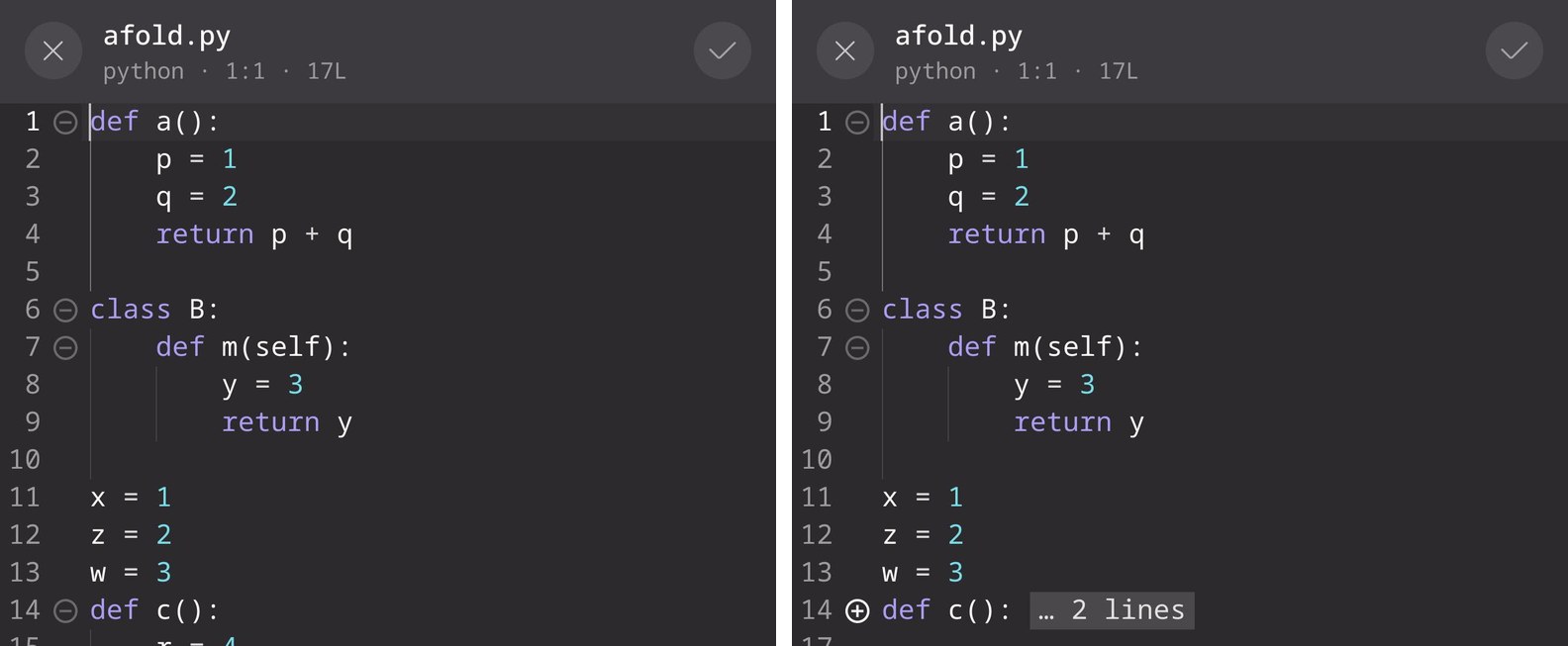
def c(): to one line; the marker turns into a plus.The keyboard
Enter makes a new line. In the editor the keyboard's Enter key reads 换行 (newline) instead of send, and inserts a line break where the cursor is — in English and Chinese input alike. In the terminal it still sends.
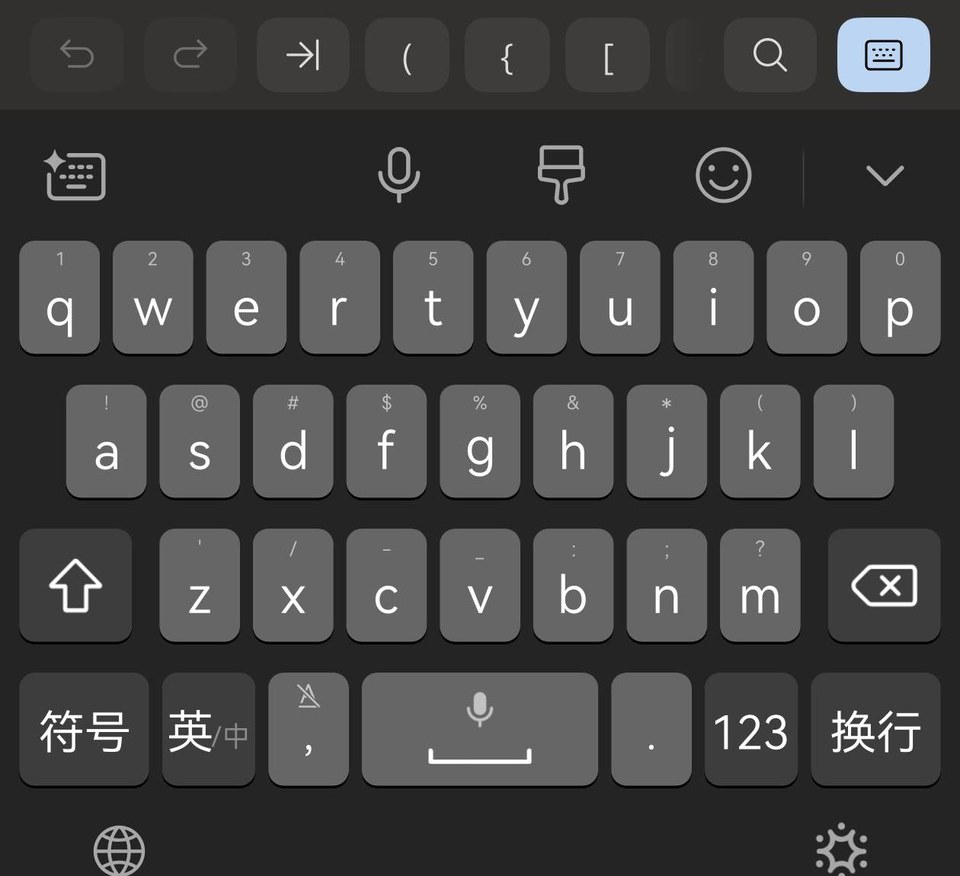
The keyboard also sees the text around the cursor now, so its suggestions follow what you are writing — type 我们今天 and it offers 去, 下午, 晚上. An edit the keyboard makes in one go, such as its writing assistant rewriting a sentence, undoes in one step instead of one character at a time.
Full screen and floating
On a tablet, moving Term between full screen and a floating window while a file is open keeps the editor and every unsaved change. Before 26.6.0 the editor could turn blank, and closing it then lost the edits without asking.