With Term Pro
It comes with Term Pro. With a subscription, every file you open uses it. Without one, files open in the basic editor, which stops at 128 KB — and the first time you open a file, Term shows what the code editor adds, with a way to the plans. You can subscribe any time from the Term Pro banner in Settings.
Nothing about your files, hosts or scripts depends on which editor opens them: if a subscription ends, the same files simply open in the basic editor again.
It replaces the editor everywhere the app already had one: files over SFTP and scripts. In the SFTP browser a file opens for editing on a long press → Edit; a plain tap shows its details instead.
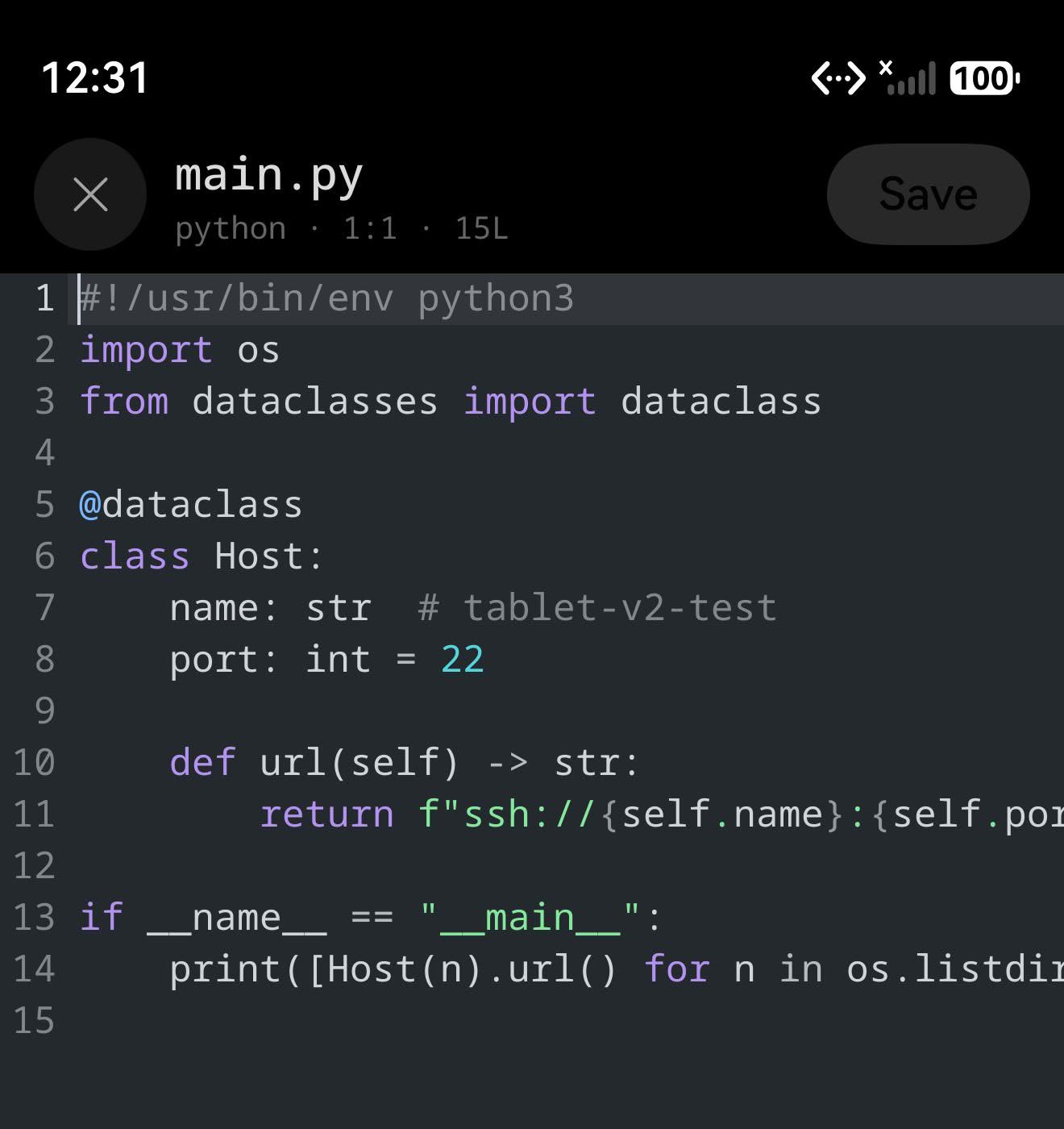
Syntax highlighting
Fifteen languages: bash, css, dockerfile, dotenv, html, java, javascript, json, markdown, python, rust, toml, tsx, typescript, yaml. The language comes from the file name, and names win over extensions — Dockerfile, .bashrc, .env.local and Cargo.lock are all recognised as themselves.
The colours are your terminal’s colours. Whichever colour scheme the terminal is using supplies the palette, and it follows a light/dark change along with the rest of the app — so the editor never turns up as a second theme you also have to like.
Selecting, and the loupe
Selection is the terminal’s, gesture for gesture: double-tap a word, triple-tap a line, or long-press and drag. The round handles extend the selection and autoscroll when you reach the edge of the screen, and the pill above it is Copy, Cut, Paste and Select all.
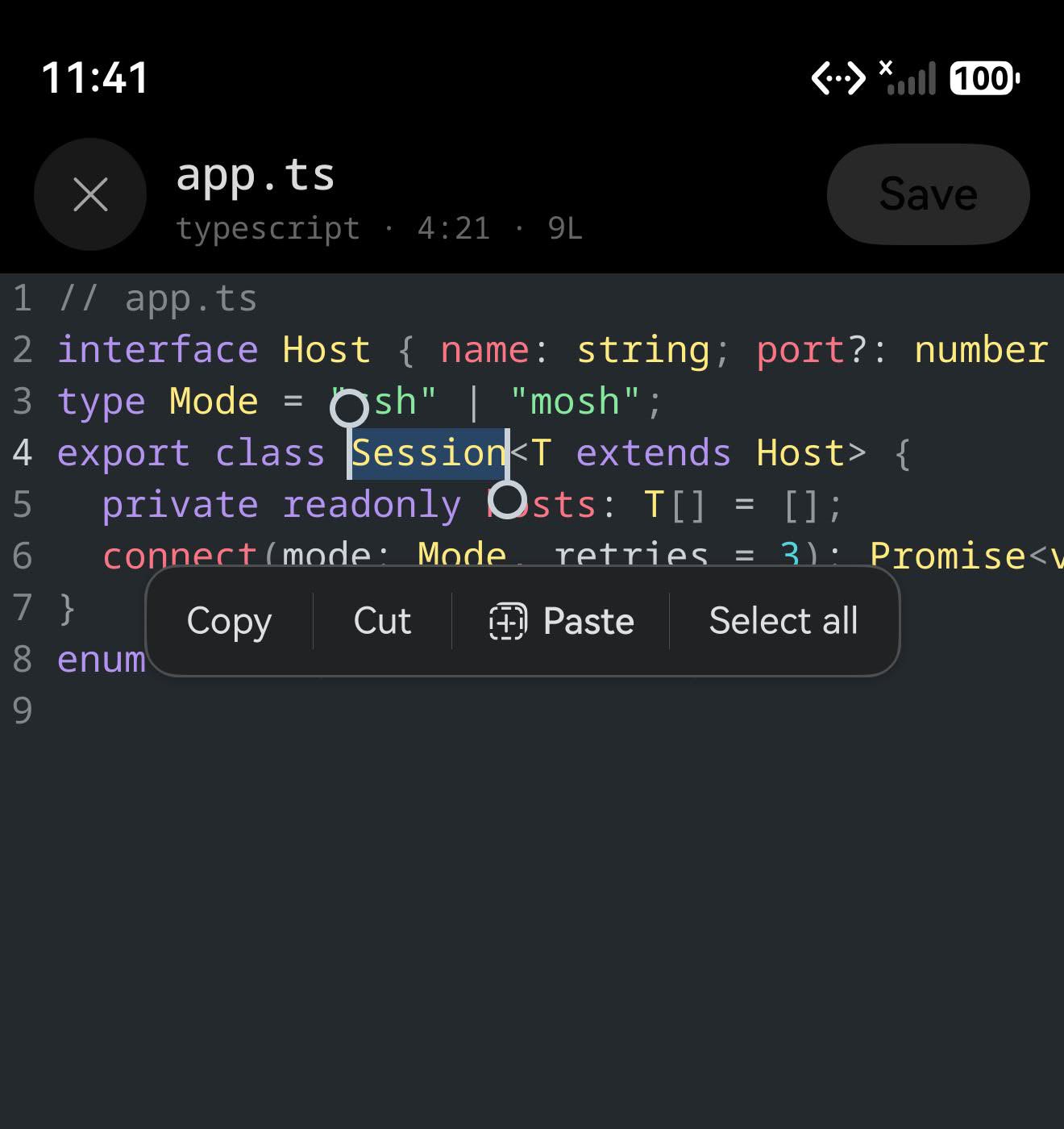
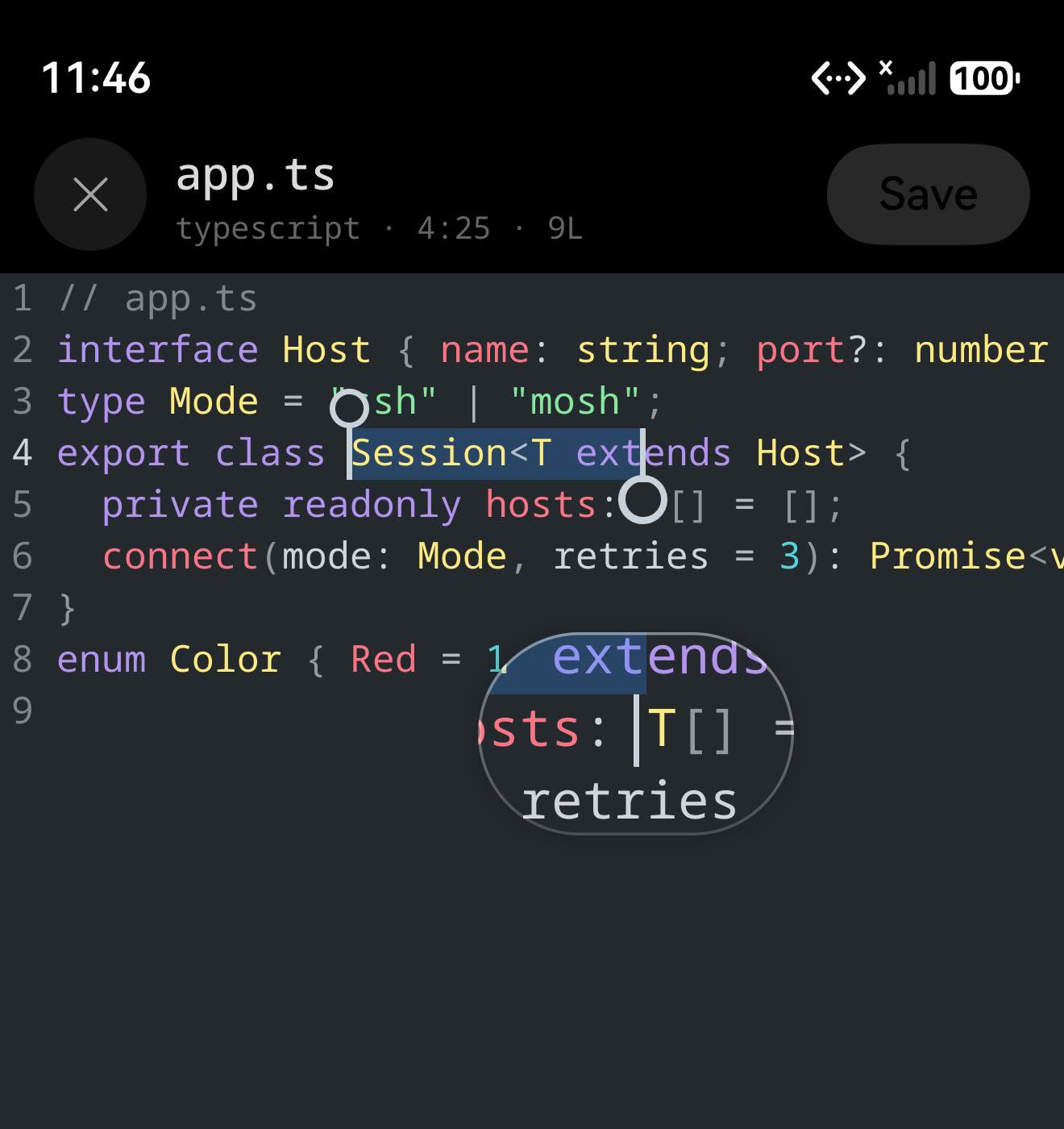
While a handle is moving the pill gets out of the way and a loupe rides above your finger — a capsule of magnified text with the syntax colours and the selection tint intact, and a thin marker at the exact point you are dragging to. Both come back when you lift.
How big a file, and how fast
The size limit goes from 128 KB to 32 MB. The numbers below are one run on a physical phone — a HUAWEI Pura 70 Pro+ over LAN Wi-Fi to a server on the same network, September 2026. Open includes the download, and Save includes the upload.
| File | Open | Typing p95 | Scrolling | Save |
|---|---|---|---|---|
| 128 KB Python | 149 ms | 30 ms | 120 fps | 0.12 s |
| 1 MB Python | 182 ms | 42 ms | 120 fps | 0.18 s |
| 4 MB Python | 299 ms | 41 ms | 120 fps | 0.30 s |
| 8 MB plain log | 376 ms | 31 ms | 120 fps | 0.53 s |
| 32 MB plain log | 1.59 s | 36 ms | 120 fps | 1.68 s |
Two things to read out of it. Opening is the download, not the editor: the engine takes about 5 ms per megabyte to load text, so what you are waiting for is the network. And typing does not care how large the file is — the harness that injected the keystrokes could only manage one every 25 ms, so every figure in the 25–33 ms band means the editor added nothing that could be measured.
For scale: the editor this replaces needed 91 ms per keystroke at 128 KB and 583 ms at 1 MB, which is where its 128 KB limit came from — measured on an emulator with the app’s own editor benchmark, a different rig from this one, so read it as an order of magnitude rather than a ratio.
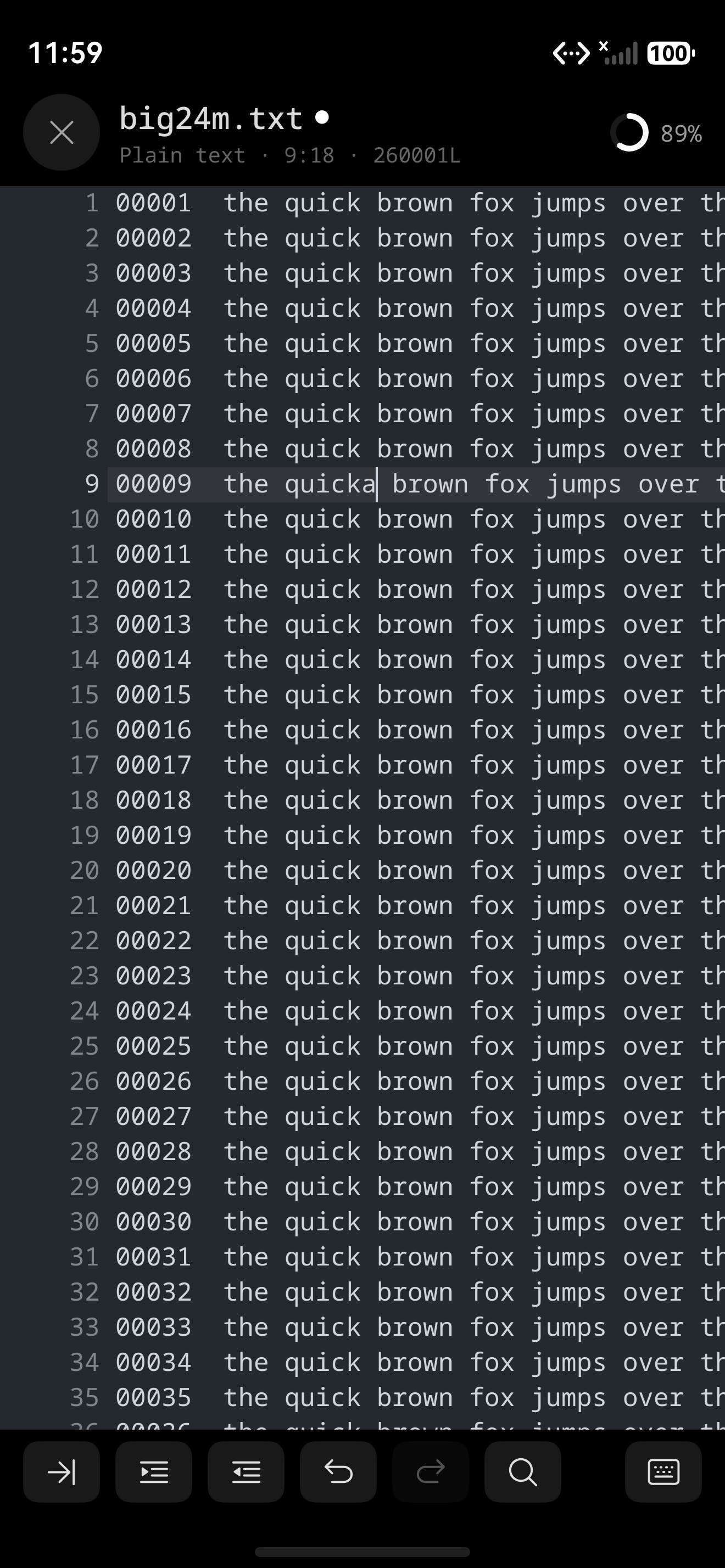
One honest exception. Above 4 MB there is no syntax highlighting. A syntax tree costs roughly 29 times the size of the file it describes, so past that line the editor keeps the text and drops the tree, and the header says no highlighting when it has. That trade is the only reason 32 MB is possible at all.
The rest of it
Find and replace
Case-insensitive, with a regex chip when you want it. The counter reads N/total and is anchored for the session, so it does not walk around while you type. Replace one, or replace all — all of them together are a single undo.
Undo, indent, zoom
Undo and redo, Tab, indent and outdent, all from the toolbar. Pinch to zoom snaps to 85, 100, 125, 150 and 175 %, flashes the percentage as it passes each notch, and is remembered — it is the editor’s own text size, separate from the terminal’s.
With a hardware keyboard
The input method binds itself as soon as the file opens, so Chinese composes without you having to touch the keyboard chip first. Ctrl+F find, Ctrl+D multi-cursor, Ctrl+/ comment, Tab and Shift+Tab to indent a block, Ctrl+Z / Ctrl+Y, PgUp and PgDn, Home and End, and Ctrl with the arrows for word and document moves.
Transfers, and saving
Anything over 256 KB shows its transfer instead of a spinner: a bar with bytes and total while the file comes down, and a ring with a whole percentage in the editor header while it goes back up. Below that size, on any normal link, the file is one chunk and a bar would only ever appear full.
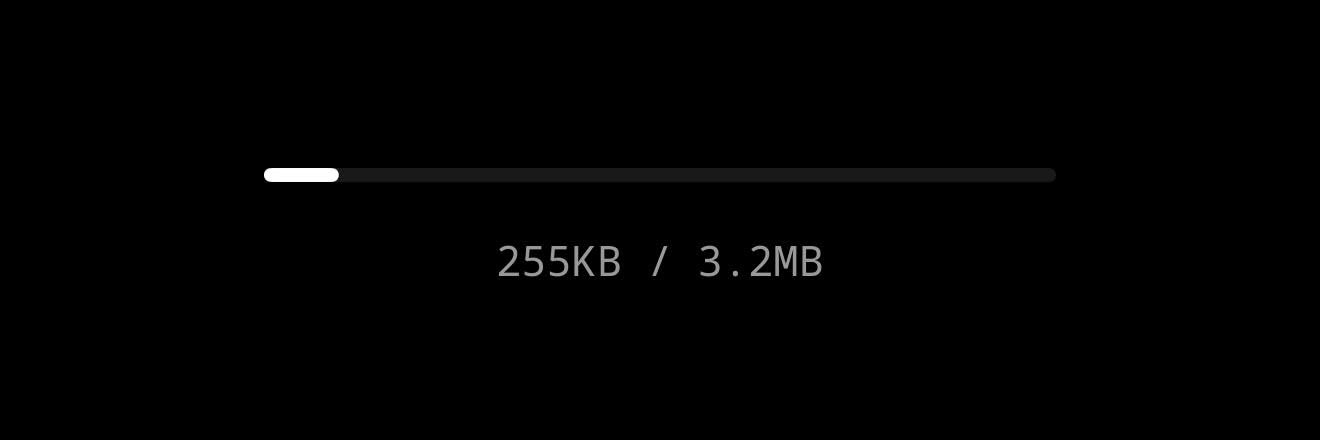
Saving has three endings. It saves; or the file changed on the server since you opened it, and you are asked before anything is overwritten; or the connection dropped, and Save turns into Reconnect so your edits are still in front of you when the link comes back. Windows line endings survive the round trip untouched.
What it does not do yet
No soft wrap, no code folding
A long line scrolls sideways rather than wrapping, and there is nothing to collapse. Both are on the engine’s list; neither is in this build.
Markdown is blocks only
Headings, code fences, lists, quotes and tables are coloured. Emphasis and links inside a paragraph are not — that needs a grammar the engine does not run yet.
On-screen Chinese composes in the keyboard’s panel
Pinyin appears in the keyboard’s own panel rather than inline in the document. That is how HarmonyOS hands soft-keyboard text to any app — ArkUI’s own text field behaves the same way — and inline preview is a hardware-keyboard mechanism. Attach a keyboard and it composes in place.
It started as a beta
From 26.4.0 it was an opt-in beta, for exactly the month of real files on real phones that tests cannot stand in for; since 26.5.1 it is part of Term Pro. The engine underneath was never thinly tested — 153 tests covering 96.6 % of its lines, all of them runnable on a laptop.