With Term Pro
Recording comes with Term Pro. With a subscription, the tab menu offers Record session and Settings lists your Recordings; without one, both are hidden. Subscribe any time from the Term Pro banner in Settings.
If a subscription ends, recording is hidden again and everything you already recorded stays exactly where it is — the list is back the moment Term Pro is.
Recording
Long-press the session tab at the bottom of the terminal and choose Record session. The first time, Term explains what a recording keeps and waits for you to agree.
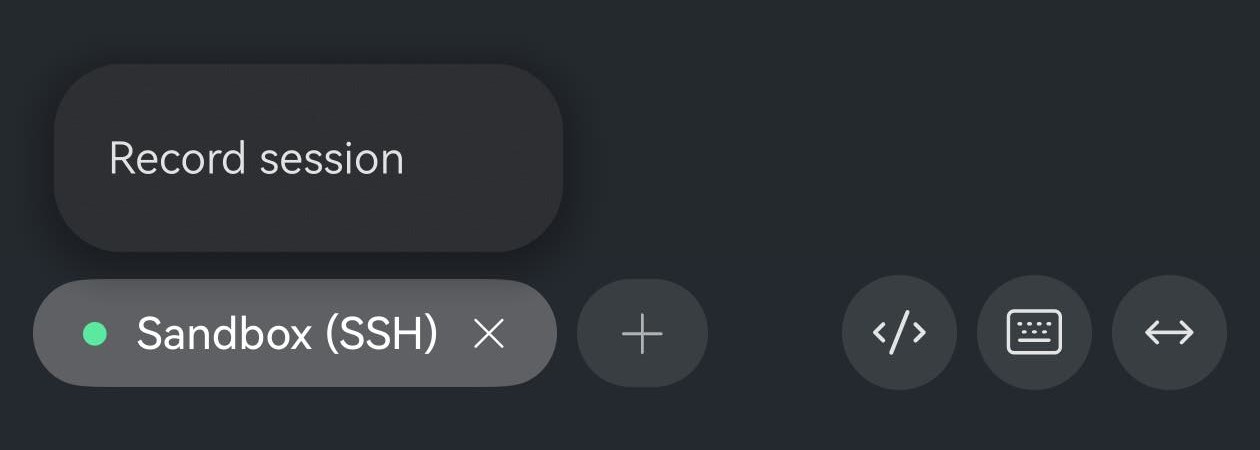
While it runs, the dot on the tab becomes a red ring. That is the only thing that changes on screen — everything else behaves exactly as it did.

To finish, long-press the tab again and choose Stop recording. Closing the tab also ends the recording, and what was captured up to that moment is kept.
What ends up in the file
A recording keeps what the terminal showed — the output, the colours, and the timing it arrived with. What you type is not saved, unless the far end echoes it back, which is what an ordinary command line does.
So a password you type at a prompt is not in the file. Anything printed on screen is — a key the server displays, a token in a log line, a config file you opened. Worth watching it back before you send it to anybody.
Recordings stay on the phone. Nothing is uploaded, and nothing leaves the device unless you share it yourself.
Watching it back
Open Settings → Recordings. Each row is one session: how long it runs, how large it is, the size of the terminal it was recorded at, and when you made it.
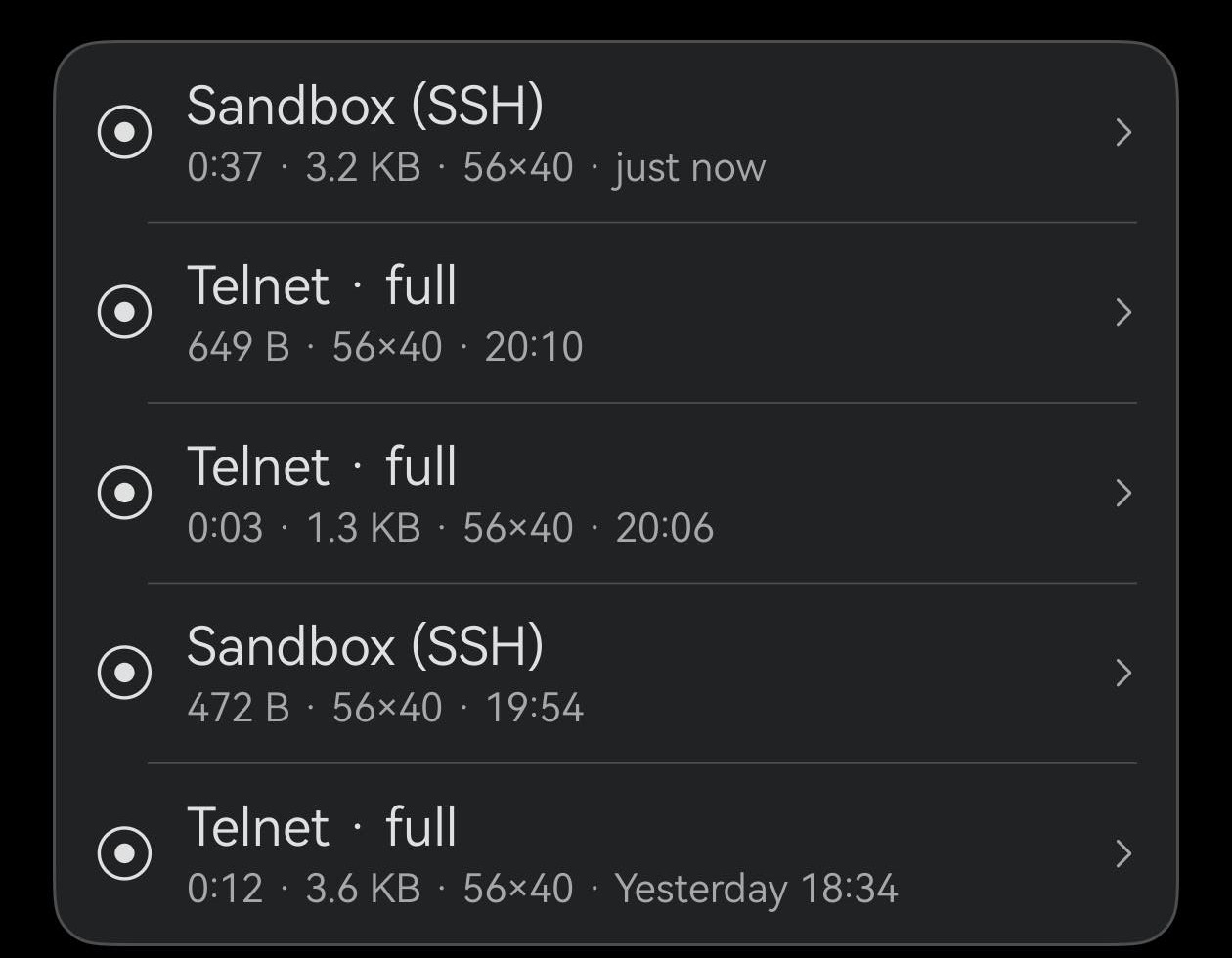
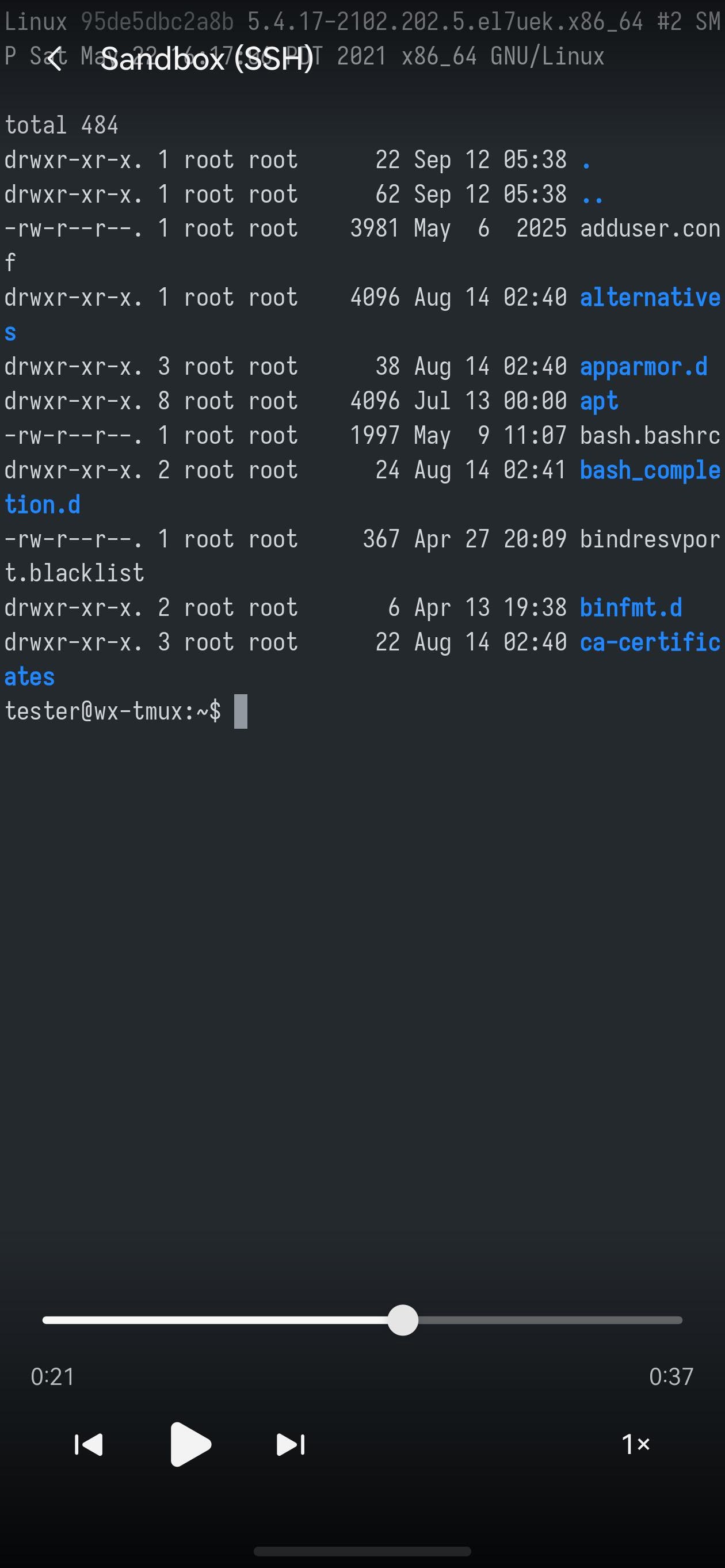
Tap a row to play it. It replays at the speed it happened, with long pauses shortened so a session you spent time thinking in does not make you wait through the thinking. Drag the bar to move around, or change the speed to run it faster or slower. The controls fade while it plays — one tap brings them back.
Sharing, renaming, deleting
Long-press a row for the rest: Play, Share, Share as .txt, Rename, Delete.
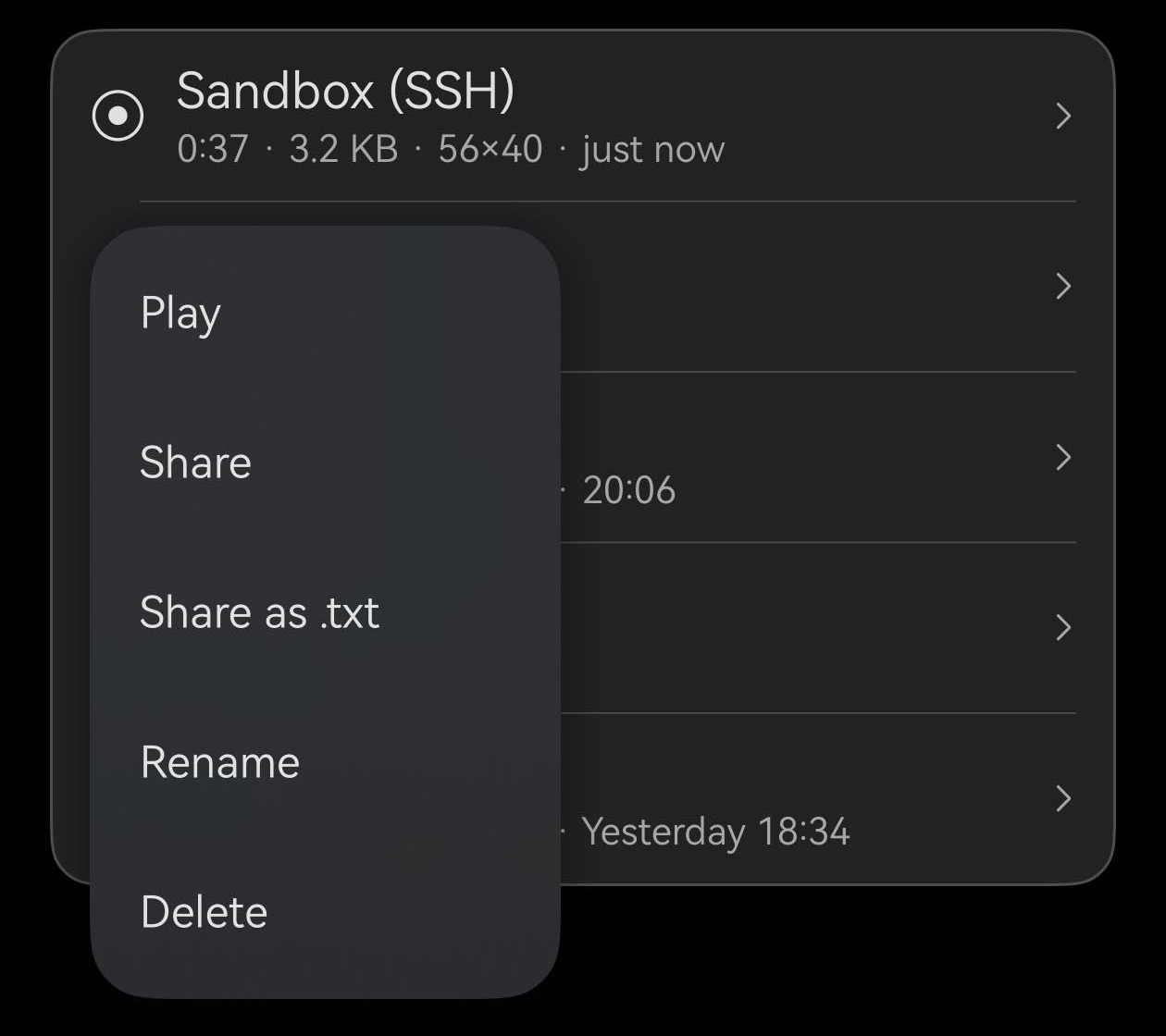
Share sends it as a .cast file — the format asciinema uses, so anyone with a player can replay it and the text stays text instead of becoming a video. Share as .txt is the plain reading of the same session, for a message or a bug report. Either way the copy you send has its long waits trimmed out, and the recording on your phone is left alone.
Worth knowing
- No time limit. A recording runs until you stop it or close the tab. It is text, so an hour of ordinary work is a small file.
- A runaway recording stops itself. Leave one running over something that floods the screen and it ends early and says so — what it captured is still playable.
- One tab at a time. Recording follows the tab you started it on. Other tabs carry on unaffected.
- They are not backed up. Recordings stay on the phone until you delete them, and uninstalling the app takes them with it.