How it is different
With an ordinary server you connect straight to the machine. With JumpServer you connect to the gateway: it checks who you are, shows you the machines you are allowed to reach, and opens the connection to the machine on your behalf. You never hold that machine’s password — the gateway does.
That is why it is not the same as Term’s Jump host setting. A jump host tunnels you through to a machine you log in to yourself. A bastion ends the connection at the gateway and starts a new one onward. So put your JumpServer address in the ordinary Host field — leave Jump host empty.
The part you actually connect to is koko — JumpServer’s gateway for the character protocols (SSH, Telnet, SFTP, Kubernetes, databases). koko is what checks your login, draws the menu and opens the connection onward, so everything below about the menu and the code prompt is koko’s behaviour rather than the web console’s.
Setting it up
- Add a host — the address of your JumpServer, and the SSH port it publishes. That is often
2222rather than 22; your administrator will know. - Username and password are your JumpServer account, not the target machine’s.
- If your JumpServer asks for a six-digit code, open Advanced options and paste the setup key into Two-step verification (TOTP) key. Term answers that prompt itself — see the two-factor guide.
- Save & connect. You should land on the gateway’s menu.
Getting to a machine
A bastion drops you at a menu, not a shell. The prompt looks like Opt>. Type the ID number of the machine you want, or part of its name or address, and press Enter:
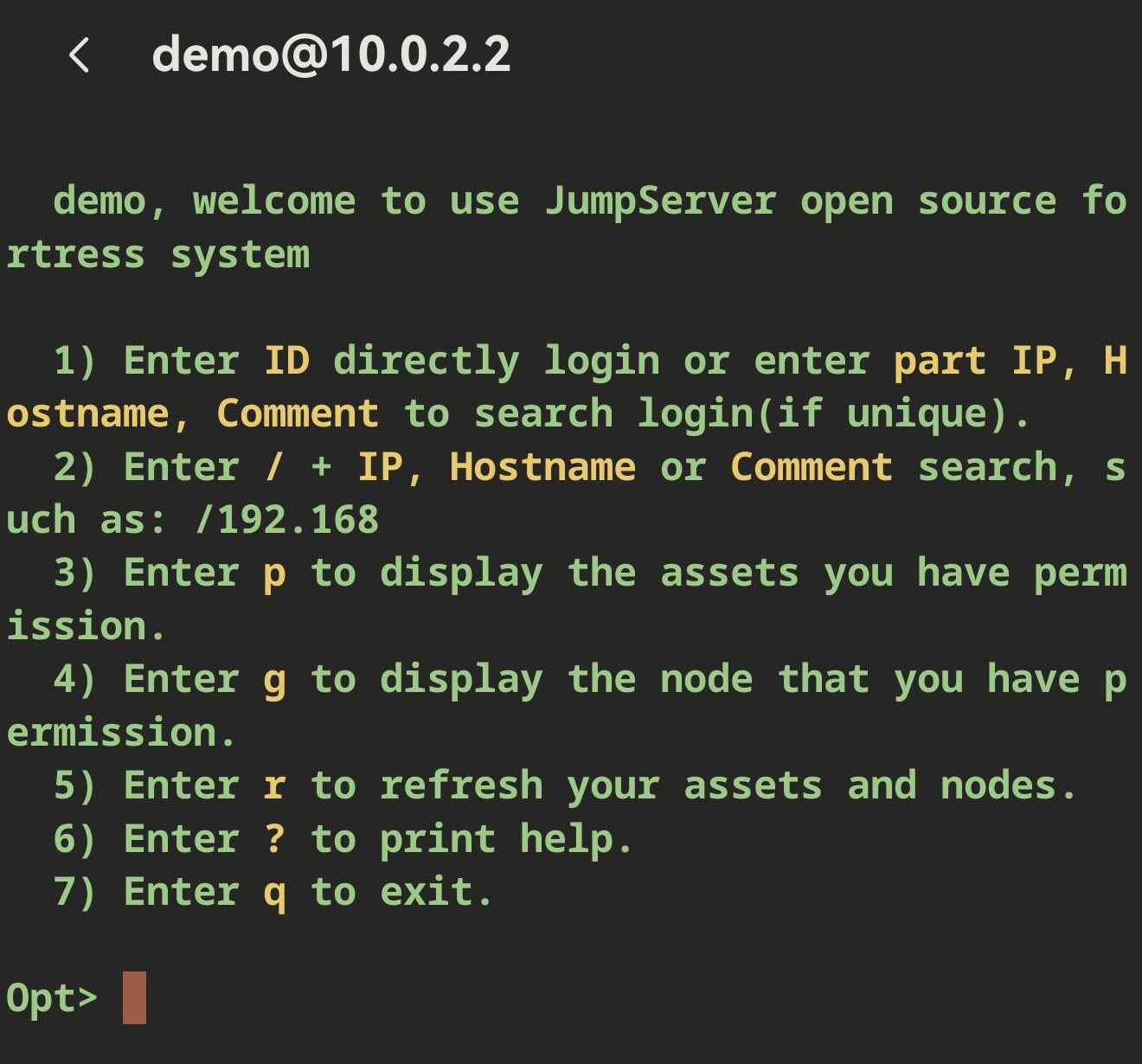
p— list the machines you can reachg— list them by group/name— search, e.g./192.168?— help ·q— log out
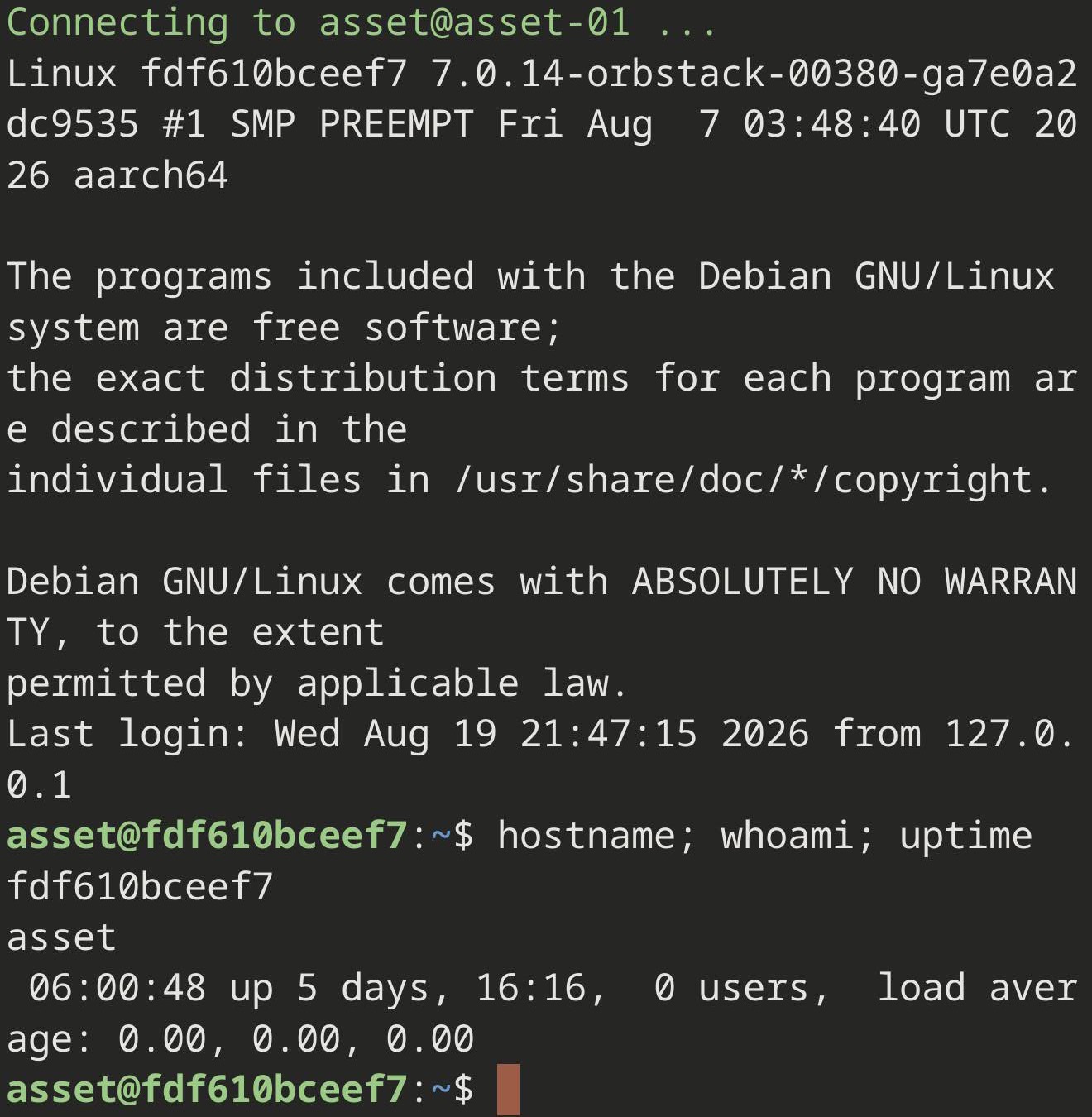
Once you pick one you are on that machine’s shell, and everything behaves normally — the key bar, arrows, Ctrl-C, resizing. Leave the shell with exit and you are back at the menu, ready to pick another machine without logging in again.
Skipping the menu
JumpServer can also take you straight to one machine, by putting the whole target in the username field: you@account@machine, where you is your JumpServer user, account is the login on the machine, and machine is its name in JumpServer.
Either separator works. The simplest way to enter it is to put the whole target in the Username field and only the JumpServer address in Host — then nothing has to be inferred. If you would rather paste the entire you@account@machine@jumpserver string into Host, Term splits it at the last @, which leaves the target in the username for you. Whether direct login is offered at all is a setting on the JumpServer side.
What is different once you are in
Command suggestions and the finished-job indicators are off on a JumpServer host. Those work by having Term install a small helper into your shell the moment it connects — and a bastion’s menu is not a shell. Sent there, the helper would simply be typed into the menu, in full, and into whatever your organisation records. Term recognises JumpServer and skips it.
The SFTP tab is not supported through a bastion yet. Use it against ordinary hosts.
Worth remembering: a bastion normally records the session — that is what it is for. Anything typed through one may be kept and reviewed.
If it will not log in
Term asks the gateway which login methods it accepts before trying one. That matters more here than anywhere else: koko does not offer the code prompt until your password has been accepted, so a client that opens with the code prompt spends one of the gateway’s permitted attempts before it has sent a single credential. A gateway that permits only one or two then hangs up part-way through — for a password that was never wrong.
If one does hang up, Term now says so: the server ended the sign-in before answering. Until v26.1.6 that arrived as an internal error with no meaning outside the source code. Wait a moment before retrying rather than trying again at once — these limits are counted over time, and a burst of retries is what keeps one tripped.
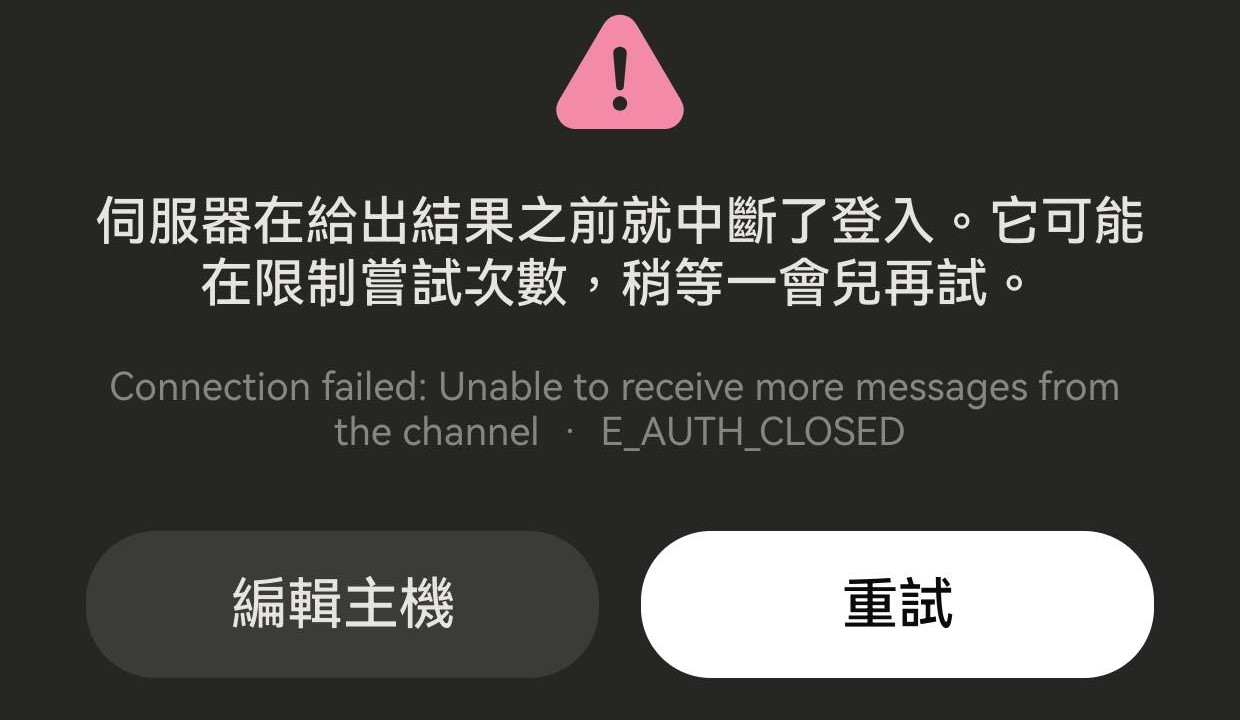
And if the gateway asked for a code, the failure now names which part of it went wrong: no key stored for this host, a key that cannot be read, or a code the gateway refused. The two-factor guide says what each one means.
Source
jumpserver/koko — the SSH gateway · jumpserver/jumpserver — the platform